Appearance
Jira integration
This guide explains how to connect Jira to DataFlair so approved deals can generate content tasks for your team.
Audience:
- Non-technical users (where to connect)
- Technical admin (token/email/domain/project key setup)
What this integration does
When connected, DataFlair creates or updates Jira tasks for deal execution workflows.
Jira task content is built from:
- Deal data (brand, deal type, account manager, deal id)
- Operator intake data (campaign/market/handoff details), merged in after the operator submits
Typically the issue is created when the deal reaches Approved (once sales has the content-order details you require). After the operator intake is merged, the same issue is updated so the description includes the operator form payload.
Before you start
You need:
- Jira Cloud account with API token access
- Jira user email (the account used for API token)
- Jira domain (example:
yourcompany.atlassian.net) - Jira project key (example:
MKT,OPS,CONTENT) - Access to DataFlair (
Settings -> Integrations)
Step 1 — Create a Jira API token
- Sign in to your Atlassian account.
- Open Atlassian API token management.
- Create a new API token (name it clearly, e.g.
DataFlair Integration). - Copy and securely store the token.
Step 2 — Confirm Jira project details
Collect:
- Email of the Jira user that owns the token
- Domain (without protocol preferred, e.g.
yourcompany.atlassian.net) - Project key where tasks should be created
Make sure this user can create/edit issues in that project.
Step 3 — Connect Jira in DataFlair
- In DataFlair, go to:
Settings -> Integrations
- On the Jira card, click Connect.
- Enter:
- API token
- Domain
- Project key
- Save.
Screenshots (DataFlair UI)
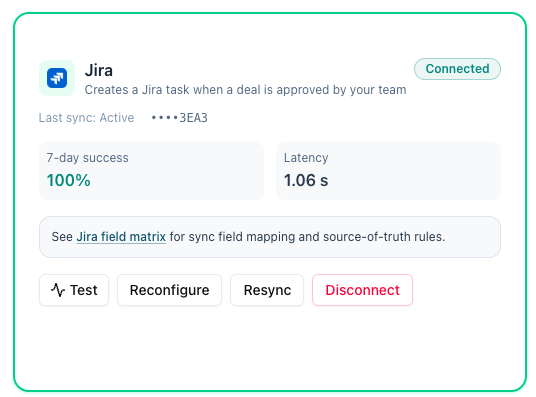
Jira integration card — On the Integrations page, the card shows connection status, metrics, and actions Test, Reconfigure, Resync, and Disconnect.
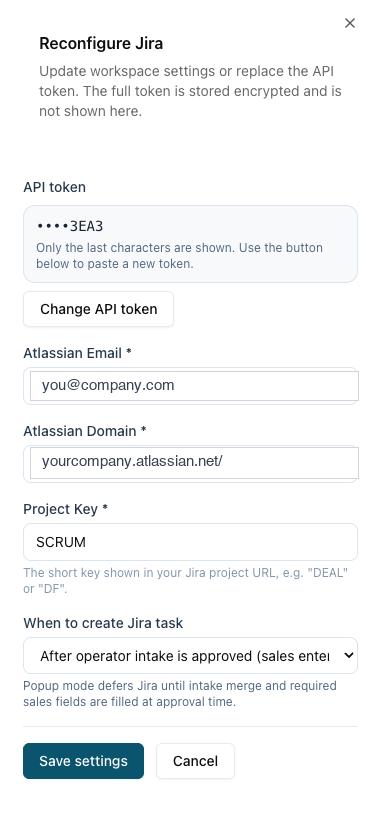
Configure / Reconfigure sheet — A panel slides in from the right when you click Connect or Reconfigure. Enter API token, Atlassian email, domain, and project key here.
When a deal is approved, DataFlair creates the Jira task from sales-side deal data. When the operator intake is merged into CRM, the same Jira issue is updated so the description reflects operator form content.
Step 4 — Run Jira test
- Click Test on the Jira integration card.
- Expected result:
- Jira reachable
- Credentials valid
- Project configuration accepted
If test fails:
- Check token
- Check email/token match
- Check domain format
- Check project key and permissions
How Jira tasks are created (business view)
Task naming format
DataFlair generates Jira summaries in this format:
Content Task: [brand name] - [site], [due date]. [account manager], [deal type], [status]
What appears in the Jira task
Typically includes:
- Brand
- Site
- Due live date
- Toplist position
- Special requests
- Market/context details from intake/deal
- Account manager
- Deal type
- DataFlair Deal ID (traceability)
Single-task behavior
DataFlair uses the deal id as the anchor, so the workflow is designed around one Jira task per deal context, enriched as more intake/deal data becomes available.
What non-technical users should do after setup
- Create and approve deal in DataFlair.
- Ensure operator intake is completed if your workflow uses intake-driven fields.
- Confirm Jira issue appears in the configured project.
- If anything is missing, use Resync on the Jira card after source data is corrected.
Validation checklist (go-live)
- [ ] Jira API token created
- [ ] Correct email/domain/project key collected
- [ ] Jira connected in DataFlair
- [ ] Jira test passes
- [ ] One real deal flow tested end-to-end
- [ ] Team confirms issue content is complete and readable
Troubleshooting
Jira test fails immediately
Bad token, wrong email, or wrong domain format are most common causes.
Jira issue not created
Confirm the deal reached Approved and required content-order fields are set if your process expects them before creation. Verify project permissions for the API user.
Jira issue created but fields are incomplete
Check source data in DataFlair deal + intake, then re-sync after correcting source values.